

Ранее мы рассмотрели возможность сохранения параметров и настроек с помощью редактора блоков WordPress (Gutenberg) и расширения сценария создания блока, чтобы обеспечить дополнительные конечные точки. В этом руководстве мы собираемся собрать их все вместе, чтобы создать страницу настроек с использованием компонентов Gutenberg.
Страница настроек, которую мы собираемся создать
Но во-первых, нужно отдать должное, вдохновение для этого руководства взято из статьи Hardeep Asrani Code in WP: Создание «страницы параметров плагина» с компонентами Gutenberg.
Предпосылки
- Следовали руководству по созданию плагина для редактора блоков WordPress (Gutenberg).
- Следовали руководству по использованию параметров для хранения данных в редакторе блоков WordPress (Gutenberg).
- Следовали инструкциям по добавлению точек входа в руководство WordPress Create Block Script.
Создайте страницу настроек в PHP
Следуя инструкциям в предварительных условиях, откройте корневой PHP-файл плагина (в данном случае wholesome-plugin.php) и добавьте следующее:
Зарегистрируйте настройки
Как и в руководстве по использованию опций для хранения данных, добавьте в файл следующие настройки:
function wholesomecode_wholesome_plugin_register_settings() {
    register_setting(
        'wholesomecode_wholesome_plugin_settings',
        'wholesomecode_wholesome_plugin_example_select',
        [
            'default'      => '',
            'show_in_rest' => true,
            'type'         => 'string',
        ]
    );

    register_setting(
        'wholesomecode_wholesome_plugin_settings',
        'wholesomecode_wholesome_plugin_example_text',
        [
            'default'      => '',
            'show_in_rest' => true,
            'type'         => 'string',
        ]
    );

    register_setting(
        'wholesomecode_wholesome_plugin_settings',
        'wholesomecode_wholesome_plugin_example_text_2',
        [
            'default'      => '',
            'show_in_rest' => true,
            'type'         => 'string',
        ]
    );

    register_setting(
        'wholesomecode_wholesome_plugin_settings',
        'wholesomecode_wholesome_plugin_example_text_3',
        [
            'default'      => '',
            'show_in_rest' => true,
            'type'         => 'string',
        ]
    );

    register_setting(
        'wholesomecode_wholesome_plugin_settings',
        'wholesomecode_wholesome_plugin_example_toggle',
        [
            'default'      => '',
            'show_in_rest' => true,
            'type'         => 'string',
        ]
    );
}
add_action( 'init', 'wholesomecode_wholesome_plugin_register_settings', 10 );
Зарегистрируйте настройки, к которым мы будем обращаться на странице настроек. Обязательно установите show_in_restдля trueкаждого из них, чтобы к ним можно было получить доступ через Гутенберг.
Зарегистрируйте страницу настроек
Добавьте блок кода для регистрации страницы настроек:
function wholesomecode_wholesome_plugin_settings_page() {
    add_options_page(
        __( 'Wholesome Plugin Settings', 'wholesome-plugin' ),
        __( 'Wholesome Plugin Settings', 'wholesome-plugin' ),
        'manage_options',
        'wholesome_plugin_settings',
        function() {
            ?>
            <div id="wholesome-plugin-settings"></div>
            <?php
        },
    );
}
add_action( 'admin_menu', 'wholesomecode_wholesome_plugin_settings_page', 10 );
Приведенный выше код добавляет новую страницу в меню настроек. Обратите внимание, что все, что он делает, это выводит <div>, это то, что мы будем использовать для рендеринга компонентов Gutenberg на основе React.
Пункт меню настроек
Поставить активы администратора в очередь
Чтобы создать следующий блок кода, нам необходимо выполнить все шаги, описанные в руководстве «Добавить точки входа в сценарий создания блока». Пожалуйста, убедитесь, что вы выполнили все шаги в этом руководстве до этого шага, а затем вернитесь и выполните остальную часть этого руководства.
function wholesomecode_wholesome_plugin_admin_scripts() {
    $dir = __DIR__;

    $script_asset_path = "$dir/build/admin.asset.php";
    if (! file_exists( $script_asset_path)) {
        throw new Error(
            'You need to run `npm start` or `npm run build` for the "wholesomecode/wholesome-plugin" block first.'
        );
    }
    $admin_js     = 'build/admin.js';
    $script_asset = require( $script_asset_path );
    wp_enqueue_script(
        'wholesomecode-wholesome-plugin-admin-editor',
        plugins_url( $admin_js, __FILE__ ),
        $script_asset['dependencies'],
        $script_asset['version']
    );
    wp_set_script_translations( 'wholesomecode-wholesome-plugin-block-editor', 'wholesome-plugin' );

    $admin_css = 'build/admin.css';
    wp_enqueue_style(
        'wholesomecode-wholesome-plugin-admin',
        plugins_url( $admin_css, __FILE__ ),
        ['wp-components'],
        filemtime( "$dir/$admin_css") );
}
add_action( 'admin_enqueue_scripts', 'wholesomecode_wholesome_plugin_admin_scripts', 10 );
Создайте страницу администратора на JavaScript
Если вы выполнили все шаги, описанные в руководстве «Добавление точек входа в сценарий создания блока », у вас должен быть /src/admin.jsфайл. Откройте этот файл и удалите его содержимое.
Рендеринг компонента
Не забудьте запустить npm startв своем терминале в соответствии с руководством по созданию плагинов и добавить в свой /src/admin.jsфайл приведенный ниже код.
import './admin.scss';
import { Icon } from '@wordpress/components';
import {
    Fragment,
    render,
    Component,
} from '@wordpress/element';
import { __ } from '@wordpress/i18n';

class App extends Component {
    constructor() {
        super( ...arguments );
    }

    render() {
        return (<Fragment>
                <div className="wholesome-plugin__header">
                    <div className="wholesome-plugin__container">
                        <div className="wholesome-plugin__title">
                            <h1>{ __( 'Wholesome Plugin Settings', 'wholesome-plugin') } <Icon icon="admin-plugins" /></h1>
                        </div>
                    </div>
                </div>
                <div className="wholesome-plugin__main"></div>
            </Fragment>) }
}

document.addEventListener( 'DOMContentLoaded',() => {
    const htmlOutput = document.getElementById( 'wholesome-plugin-settings' );

    if (htmlOutput) {
        render(
            <App />,
            htmlOutput
        );
    }
});
Если вы перейдете на страницу настроек в браузере, вы должны увидеть следующее:
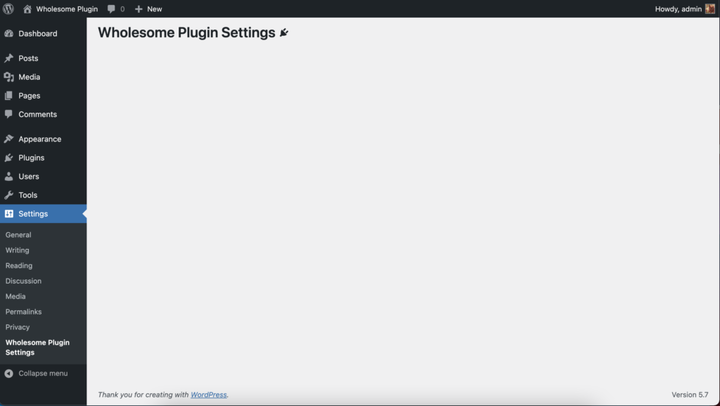 Рендеринг компонентов на экране настроек
Добавьте поля настроек
Помните дополнительные шаги в руководстве «Использование параметров для хранения данных»? Что ж, мы в значительной степени собираемся вставить их дословно в этот компонент, поэтому у вас должен получиться код, который выглядит примерно так:
import './admin.scss';

import api from '@wordpress/api';

import {
    Button,
    Icon,
    Panel,
    PanelBody,
    PanelRow,
    Placeholder,
    SelectControl,
    Spinner,
    TextControl,
    ToggleControl,
} from '@wordpress/components';

import {
    Fragment,
    render,
    Component,
} from '@wordpress/element';

import { __ } from '@wordpress/i18n';

class App extends Component {
    constructor() {
        super( ...arguments );

        this.state = {
            exampleSelect: '',
            exampleText: '',
            exampleText2: '',
            exampleText3: '',
            exampleToggle: false,
            isAPILoaded: false,
        };
    }

    componentDidMount() {

        api.loadPromise.then(() => {
            this.settings = new api.models.Settings();

            const { isAPILoaded } = this.state;

            if (isAPILoaded === false) {
                this.settings.fetch().then( (response) => {
                    this.setState( {
                        exampleSelect: response[ 'wholesomecode_wholesome_plugin_example_select' ],
                        exampleText: response[ 'wholesomecode_wholesome_plugin_example_text' ],
                        exampleText2: response[ 'wholesomecode_wholesome_plugin_example_text_2' ],
                        exampleText3: response[ 'wholesomecode_wholesome_plugin_example_text_3' ],
                        exampleToggle: Boolean( response[ 'wholesomecode_wholesome_plugin_example_toggle' ] ),
                        isAPILoaded: true,
                    } );
                } );
            }
        } );
    }

    render() {
        const {
            exampleSelect,
            exampleText,
            exampleText2,
            exampleText3,
            exampleToggle,
            isAPILoaded,
        } = this.state;

        if (! isAPILoaded) {
            return (<Placeholder>
                    <Spinner />
                </Placeholder>
            );
        }

        return (<Fragment>
                <div className="wholesome-plugin__header">
                    <div className="wholesome-plugin__container">
                        <div className="wholesome-plugin__title">
                            <h1>{ __( 'Wholesome Plugin Settings', 'wholesome-plugin') } <Icon icon="admin-plugins" /></h1>
                        </div>
                    </div>
                </div>

                <div className="wholesome-plugin__main">
                    <Panel>
                        <PanelBody
                            title={ __( 'Panel Body One', 'wholesome-plugin') }
                            icon="admin-plugins"
                        >
                            <SelectControl
                                help={ __( 'An example dropdown field.', 'wholesome-plugin') }
                                label={ __( 'Example Select', 'wholesome-plugin') }
                                onChange={ (exampleSelect) => this.setState( { exampleSelect }) }
                                options={ [
                                    {
                                        label: __( 'Please Select...', 'wholesome-plugin' ),
                                        value: '',
                                    },
                                    {
                                        label: __( 'Option 1', 'wholesome-plugin' ),
                                        value: 'option-1',
                                    },
                                    {
                                        label: __( 'Option 2', 'wholesome-plugin' ),
                                        value: 'option-2',
                                    },
                                ] }
                                value={ exampleSelect }
                            />
                        </PanelBody>
                        <PanelBody
                            title={ __( 'Panel Body Two', 'wholesome-plugin') }
                            icon="admin-plugins"
                        >
                            <TextControl
                                help={ __( 'This is an example text field.', 'wholesome-plugin') }
                                label={ __( 'Example Text', 'wholesome-plugin') }
                                onChange={ (exampleText) => this.setState( { exampleText }) }
                                value={ exampleText }
                            />

                        </PanelBody>
                        <PanelBody
                            title={ __( 'Panel Body Three', 'wholesome-plugin') }
                            icon="admin-plugins"
                        >
                            <PanelRow>
                                <TextControl
                                    help={ __( 'Use PanelRow to place controls inline.', 'wholesome-plugin') }
                                    label={ __( 'Example Text 2', 'wholesome-plugin') }
                                    onChange={ (exampleText2) => this.setState( { exampleText2 }) }
                                    value={ exampleText2 }
                                />
                                <TextControl
                                    help={ __( 'This control is inline.', 'wholesome-plugin') }
                                    label={ __( 'Example Text 3', 'wholesome-plugin') }
                                    onChange={ (exampleText3) => this.setState( { exampleText3 }) }
                                    value={ exampleText3 }
                                />
                            </PanelRow>
                        </PanelBody>
                        <PanelBody
                            title={ __( 'Panel Body Four', 'wholesome-plugin') }
                            icon="admin-plugins"
                        >
                            <ToggleControl
                                checked={ exampleToggle }
                                help={ __( 'An example toggle.', 'wholesome-plugin') }
                                label={ __( 'Example Toggle', 'wholesome-plugin') }
                                onChange={ (exampleToggle) => this.setState( { exampleToggle }) }
                            />
                        </PanelBody>
                        <Button
                            isPrimary
                            isLarge
                            onClick={ () => {}}
                        >
                            { __( 'Save', 'wholesome-plugin') }
                        </Button>
                    </Panel>
                </div>
            </Fragment>) }
}

document.addEventListener( 'DOMContentLoaded', () => {
    const htmlOutput = document.getElementById( 'wholesome-plugin-settings' );

    if (htmlOutput) {
        render(
            <App />,
            htmlOutput
        );
    }
});
Помимо удаления subscribein componentDidMount, который мы ранее использовали для сохранения в этом руководстве, и добавления кнопки, код в значительной степени копируется и вставляется.
Если все хорошо, наша страница настроек теперь должна выглядеть примерно так:
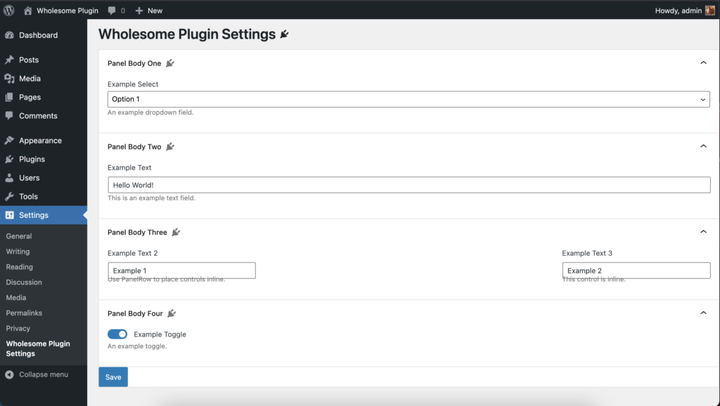 Рендеринг полей настройки
Не волнуйтесь, мы очистим стили в разделе 4 этого руководства.
Обработать сохранение
В onClickобработчик <button>компонента добавьте следующий код:
<Button
  isPrimary
  isLarge
  onClick={ () => {
    const {
      exampleSelect,
      exampleText,
      exampleText2,
      exampleText3,
      exampleToggle,
    } = this.state;

    const settings = new api.models.Settings( {
      [ 'wholesomecode_wholesome_plugin_example_select' ]: exampleSelect,
      [ 'wholesomecode_wholesome_plugin_example_text' ]: exampleText,
      [ 'wholesomecode_wholesome_plugin_example_text_2' ]: exampleText2,
      [ 'wholesomecode_wholesome_plugin_example_text_3' ]: exampleText3,
      [ 'wholesomecode_wholesome_plugin_example_toggle' ]: exampleToggle? 'true': '',
    } );
    settings.save();
  }}
  >
  { __( 'Save', 'wholesome-plugin') }
</Button>
Это сохранит наши параметры и настройки при нажатии кнопки. Однако нет никаких указаний на то, что параметры сохранены по умолчанию.
Создать уведомление
Чтобы дать нашему пользователю обратную связь о том, что параметры и настройки были сохранены, давайте реализуем уведомление «закусочная». Это то же самое уведомление, которое используется на главном экране редактора сообщений, которое редактор блоков использует при сохранении сообщения.
Чтобы добавить это, нам нужно портировать основной компонент Gutenberg в нашу сборку, так как список уведомлений недоступен при использовании обычных операторов импорта.
Нам нужно будет добавить в файл следующий код:
import { SnackbarList } from '@wordpress/components';

import {
    dispatch,
    useDispatch,
    useSelect,
} from '@wordpress/data';

import { store as noticesStore } from '@wordpress/notices';

const Notices = () => {
    const notices = useSelect( (select) =>
            select( noticesStore) .getNotices()
                .filter( (notice) => notice.type === 'snackbar' ),
        []
    );
    const { removeNotice } = useDispatch( noticesStore );
    return (<SnackbarList
            className="edit-site-notices"
            notices={ notices }
            onRemove={ removeNotice }
        />
    );
};
Затем в основном рендере <App>компонента перед закрытием добавьте следующее </Fragment>:
<div className="wholesome-plugin__notices">
  <Notices/>
</div>
Наконец, добавьте следующее в onClickобработчик кнопки:
dispatch('core/notices').createNotice(
  'success',
  __( 'Settings Saved', 'wholesome-plugin' ),
  {
    type: 'snackbar',
    isDismissible: true,
  }
);
Это создаст небольшое всплывающее окно «закусочная» всякий раз, когда настройки сохраняются.
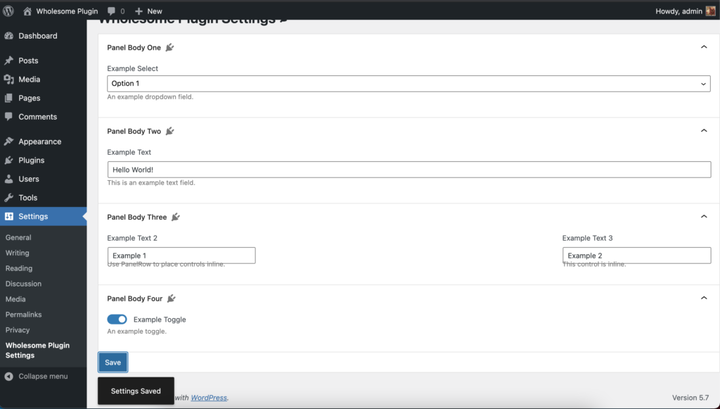 Уведомление о закусочной в действии
Я знаю, я знаю, нам все еще нужно исправить эти стили.
Полный /src/admin.jsфайл
Для справки вот полный /src/admin.jsкод файла:
import './admin.scss';

import api from '@wordpress/api';

import {
    Button,
    Icon,
    Panel,
    PanelBody,
    PanelRow,
    Placeholder,
    SelectControl,
    SnackbarList,
    Spinner,
    TextControl,
    ToggleControl,
} from '@wordpress/components';

import {
    dispatch,
    useDispatch,
    useSelect,
} from '@wordpress/data';

import {
    Fragment,
    render,
    Component,
} from '@wordpress/element';

import { __ } from '@wordpress/i18n';

import { store as noticesStore } from '@wordpress/notices';

const Notices = () => {
    const notices = useSelect( (select) =>
            select( noticesStore) .getNotices()
                .filter( (notice) => notice.type === 'snackbar' ),
        []
    );
    const { removeNotice } = useDispatch( noticesStore );
    return (<SnackbarList
            className="edit-site-notices"
            notices={ notices }
            onRemove={ removeNotice }
        />
    );
};

class App extends Component {
    constructor() {
        super( ...arguments );

        this.state = {
            exampleSelect: '',
            exampleText: '',
            exampleText2: '',
            exampleText3: '',
            exampleToggle: false,
            isAPILoaded: false,
        };
    }

    componentDidMount() {

        api.loadPromise.then( () => {
            this.settings = new api.models.Settings();

            const { isAPILoaded } = this.state;

            if (isAPILoaded === false) {
                this.settings.fetch().then( (response) => {
                    this.setState( {
                        exampleSelect: response[ 'wholesomecode_wholesome_plugin_example_select' ],
                        exampleText: response[ 'wholesomecode_wholesome_plugin_example_text' ],
                        exampleText2: response[ 'wholesomecode_wholesome_plugin_example_text_2' ],
                        exampleText3: response[ 'wholesomecode_wholesome_plugin_example_text_3' ],
                        exampleToggle: Boolean( response[ 'wholesomecode_wholesome_plugin_example_toggle' ] ),
                        isAPILoaded: true,
                    } );
                } );
            }
        } );
    }

    render() {
        const {
            exampleSelect,
            exampleText,
            exampleText2,
            exampleText3,
            exampleToggle,
            isAPILoaded,
        } = this.state;

        if (! isAPILoaded) {
            return (<Placeholder>
                    <Spinner />
                </Placeholder>
            );
        }

        return (<Fragment>
                <div className="wholesome-plugin__header">
                    <div className="wholesome-plugin__container">
                        <div className="wholesome-plugin__title">
                            <h1>{ __( 'Wholesome Plugin Settings', 'wholesome-plugin') } <Icon icon="admin-plugins" /></h1>
                        </div>
                    </div>
                </div>

                <div className="wholesome-plugin__main">
                    <Panel>
                        <PanelBody
                            title={ __( 'Panel Body One', 'wholesome-plugin') }
                            icon="admin-plugins"
                        >
                            <SelectControl
                                help={ __( 'An example dropdown field.', 'wholesome-plugin') }
                                label={ __( 'Example Select', 'wholesome-plugin') }
                                onChange={ (exampleSelect) => this.setState( { exampleSelect }) }
                                options={ [
                                    {
                                        label: __( 'Please Select...', 'wholesome-plugin' ),
                                        value: '',
                                    },
                                    {
                                        label: __( 'Option 1', 'wholesome-plugin' ),
                                        value: 'option-1',
                                    },
                                    {
                                        label: __( 'Option 2', 'wholesome-plugin' ),
                                        value: 'option-2',
                                    },
                                ] }
                                value={ exampleSelect }
                            />
                        </PanelBody>
                        <PanelBody
                            title={ __( 'Panel Body Two', 'wholesome-plugin') }
                            icon="admin-plugins"
                        >
                            <TextControl
                                help={ __( 'This is an example text field.', 'wholesome-plugin') }
                                label={ __( 'Example Text', 'wholesome-plugin') }
                                onChange={ (exampleText) => this.setState( { exampleText }) }
                                value={ exampleText }
                            />

                        </PanelBody>
                        <PanelBody
                            title={ __( 'Panel Body Three', 'wholesome-plugin') }
                            icon="admin-plugins"
                        >
                            <PanelRow>
                                <TextControl
                                    help={ __( 'Use PanelRow to place controls inline.', 'wholesome-plugin') }
                                    label={ __( 'Example Text 2', 'wholesome-plugin') }
                                    onChange={ (exampleText2) => this.setState( { exampleText2 }) }
                                    value={ exampleText2 }
                                />
                                <TextControl
                                    help={ __( 'This control is inline.', 'wholesome-plugin') }
                                    label={ __( 'Example Text 3', 'wholesome-plugin') }
                                    onChange={ (exampleText3) => this.setState( { exampleText3 }) }
                                    value={ exampleText3 }
                                />
                            </PanelRow>
                        </PanelBody>
                        <PanelBody
                            title={ __( 'Panel Body Four', 'wholesome-plugin') }
                            icon="admin-plugins"
                        >
                            <ToggleControl
                                checked={ exampleToggle }
                                help={ __( 'An example toggle.', 'wholesome-plugin') }
                                label={ __( 'Example Toggle', 'wholesome-plugin') }
                                onChange={ (exampleToggle) => this.setState( { exampleToggle }) }
                            />
                        </PanelBody>
                        <Button
                            isPrimary
                            isLarge
                            onClick={ () => {
                                const {
                                    exampleSelect,
                                    exampleText,
                                    exampleText2,
                                    exampleText3,
                                    exampleToggle,
                                } = this.state;

                                const settings = new api.models.Settings( {
                                    [ 'wholesomecode_wholesome_plugin_example_select' ]: exampleSelect,
                                    [ 'wholesomecode_wholesome_plugin_example_text' ]: exampleText,
                                    [ 'wholesomecode_wholesome_plugin_example_text_2' ]: exampleText2,
                                    [ 'wholesomecode_wholesome_plugin_example_text_3' ]: exampleText3,
                                    [ 'wholesomecode_wholesome_plugin_example_toggle' ]: exampleToggle? 'true': '',
                                } );
                                settings.save();

                                dispatch('core/notices').createNotice(
                                    'success',
                                    __( 'Settings Saved', 'wholesome-plugin' ),
                                    {
                                        type: 'snackbar',
                                        isDismissible: true,
                                    }
                                );
                            }}
                        >
                            { __( 'Save', 'wholesome-plugin') }
                        </Button>
                    </Panel>
                </div>

                <div className="wholesome-plugin__notices">
                    <Notices/>
                </div>

            </Fragment>) }
}

document.addEventListener( 'DOMContentLoaded', () => {
    const htmlOutput = document.getElementById( 'wholesome-plugin-settings' );

    if (htmlOutput) {
        render(
            <App />,
            htmlOutput
        );
    }
});
Добавьте SCSS
Время исправить эти стили. Просто добавьте следующее в /src/admin.scssфайл (который вы бы создали в руководстве «Добавить точки входа в сценарий создания блока».
#wholesome-plugin-settings {

    .components-placeholder {
        background: #f1f1f1;
    }

    .wholesome-plugin__header {
        background-color: #ffffff;
        box-shadow: 0 1px 0 rgba(213, 213, 213, .5), 0 1px 2px #eeeeee;
        margin-left: -2em;
        padding: 20px 10px;

        .wholesome-plugin__container {
            margin: 0 auto;
            max-width: 750px;

            .wholesome-plugin__title {
                align-items: center;
                display: flex;
                justify-content: center;

                .dashicon {
                    color: #757575;
                }
            }
        }
    }

    .wholesome-plugin__main {
        margin-left: auto;
        margin-right: auto;
        max-width: 750px;

        .components-panel {
            background: none;
            border: none;
        }

        .components-panel__body {
            background: #ffffff;
            border: 1px solid #e2e4e7;
            margin: 1rem 0;
        }
    }

    .components-base-control__help {
        margin-top: .5rem;
    }

    .components-panel__row {
        > div {
            flex-grow: 1;
            margin-right: 1rem;

            &:last-of-type {
                margin-right: 0;
            }
        }
    }

    .wholesome-plugin__notices {
        .components-snackbar {
            bottom: .5rem;
            position: fixed;
        }
    }
}
Просмотр страницы настроек
Вот окончательный результат:
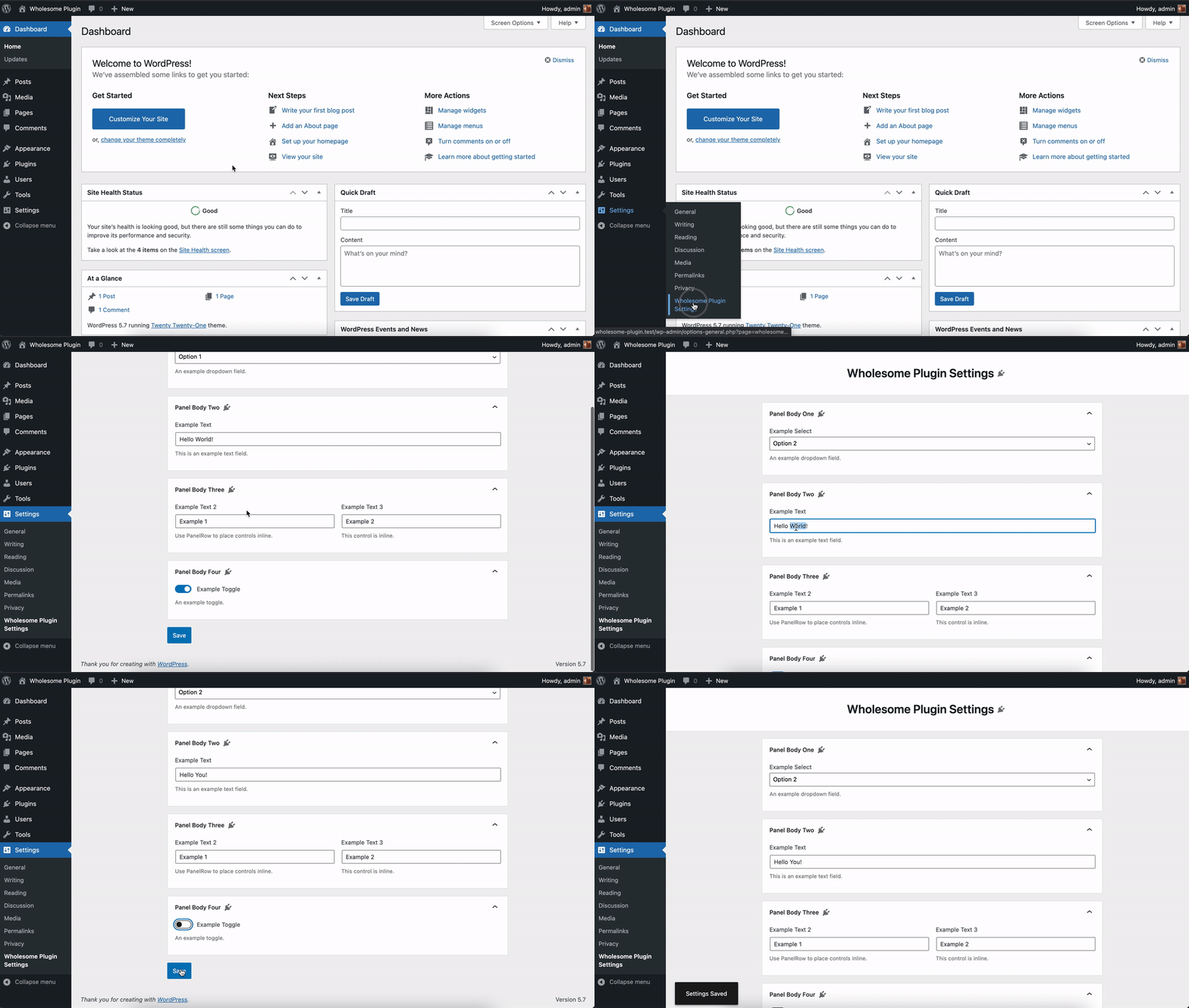 Страница настроек
Некоторые плагины имеют ссылку «Настройки» на странице плагинов, например:
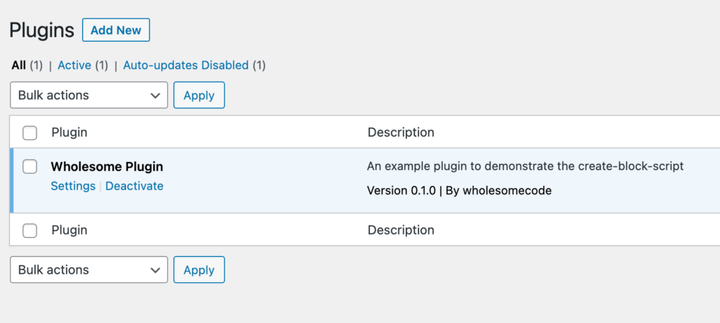 Ссылка на настройки на панели страницы настроек плагина
Для этого добавьте следующий блок кода в корень вашего файла плагина (в данном случае wholesome-plugin.php):
function wholesomecode_wholesome_plugin_settings_link( $links ): array {
    $label = esc_html__( 'Settings', 'wholesome-plugin' );
    $slug  = 'wholesome_plugin_settings';

    array_unshift( $links, "<a href='options-general.php?page=$slug'>$label</a>" );

    return $links;
}
add_action( 'plugin_action_links_'. plugin_basename( __FILE__ ), 'wholesomecode_wholesome_plugin_settings_link', 10 );
- Посмотрите на создание вложенных дочерних блоков с
InnerBlocksкомпонентом - Взгляните на использование метаполей сообщений в блоках Гутенберга.
- Посмотрите, как создать панель настройки с компонентами Gutenberg.