

Wcześniej przyjrzeliśmy się przechowywaniu opcji i ustawień za pomocą Edytora bloków WordPress (Gutenberg) i rozszerzeniu skryptu tworzenia bloku, aby umożliwić dodatkowe punkty końcowe. W tym przewodniku zamierzamy połączyć je wszystkie, aby utworzyć stronę ustawień za pomocą komponentów Gutenberga.
Strona ustawień, którą zamierzamy zbudować
Ale po pierwsze, zasługa zasługuje na uznanie, inspiracją do tego przewodnika jest artykuł Code in WP autorstwa Hardeep Asrani: Tworzenie „strony opcji wtyczek" z komponentami Gutenberga.
Warunki wstępne
- Postępowałem zgodnie z przewodnikiem Tworzenie wtyczki do edytora bloków WordPress (Gutenberg)
- Postępowałem zgodnie z instrukcjami dotyczącymi używania opcji przechowywania danych w edytorze bloków WordPress (Gutenberg)
- Postępowałem zgodnie z instrukcjami dodawania punktów wejścia do przewodnika tworzenia skryptów blokowych WordPress
Utwórz stronę ustawień w PHP
Kontynuując instrukcje w wymaganiach wstępnych, otwórz główny plik PHP wtyczki (w tym przypadku wholesome-plugin.php) i dodaj następujące elementy:
Zarejestruj ustawienia
Podobnie jak w przypadku korzystania z opcji przechowywania danych przewodnika, dodaj do pliku następujące ustawienia:
function wholesomecode_wholesome_plugin_register_settings() {
    register_setting(
        'wholesomecode_wholesome_plugin_settings',
        'wholesomecode_wholesome_plugin_example_select',
        [
            'default'      => '',
            'show_in_rest' => true,
            'type'         => 'string',
        ]
    );

    register_setting(
        'wholesomecode_wholesome_plugin_settings',
        'wholesomecode_wholesome_plugin_example_text',
        [
            'default'      => '',
            'show_in_rest' => true,
            'type'         => 'string',
        ]
    );

    register_setting(
        'wholesomecode_wholesome_plugin_settings',
        'wholesomecode_wholesome_plugin_example_text_2',
        [
            'default'      => '',
            'show_in_rest' => true,
            'type'         => 'string',
        ]
    );

    register_setting(
        'wholesomecode_wholesome_plugin_settings',
        'wholesomecode_wholesome_plugin_example_text_3',
        [
            'default'      => '',
            'show_in_rest' => true,
            'type'         => 'string',
        ]
    );

    register_setting(
        'wholesomecode_wholesome_plugin_settings',
        'wholesomecode_wholesome_plugin_example_toggle',
        [
            'default'      => '',
            'show_in_rest' => true,
            'type'         => 'string',
        ]
    );
}
add_action( 'init', 'wholesomecode_wholesome_plugin_register_settings', 10 );
Zarejestruj ustawienia, do których uzyskamy dostęp na stronie ustawień. Pamiętaj, aby ustawić show_in_restdla truekażdego z nich, aby można było uzyskać do nich dostęp za pośrednictwem Gutenberga.
Zarejestruj stronę ustawień
Dodaj blok kodu, aby zarejestrować stronę ustawień:
function wholesomecode_wholesome_plugin_settings_page() {
    add_options_page(
        __( 'Wholesome Plugin Settings', 'wholesome-plugin' ),
        __( 'Wholesome Plugin Settings', 'wholesome-plugin' ),
        'manage_options',
        'wholesome_plugin_settings',
        function() {
            ?>
            <div id="wholesome-plugin-settings"></div>
            <?php
        },
    );
}
add_action( 'admin_menu', 'wholesomecode_wholesome_plugin_settings_page', 10 );
Powyższy kod dodaje nową stronę do menu ustawień. Zauważ, że wszystko, co robi, to wyprowadza a <div>, tego użyjemy do renderowania komponentów Gutenberga opartych na React.
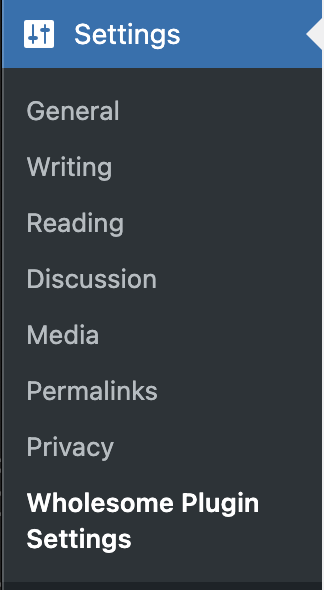 Pozycja menu ustawień
Umieszczanie zasobów administratora w kolejce
Aby uzyskać następny blok kodu, musimy wykonać wszystkie kroki opisane w przewodniku Dodaj punkty wejścia do przewodnika Utwórz skrypt blokowy. Upewnij się, że wykonałeś wszystkie kroki w tym przewodniku przed tym krokiem, a następnie wróć i postępuj zgodnie z resztą tego przewodnika.
function wholesomecode_wholesome_plugin_admin_scripts() {
    $dir = __DIR__;

    $script_asset_path = "$dir/build/admin.asset.php";
    if (! file_exists( $script_asset_path)) {
        throw new Error(
            'You need to run `npm start` or `npm run build` for the "wholesomecode/wholesome-plugin" block first.'
        );
    }
    $admin_js     = 'build/admin.js';
    $script_asset = require( $script_asset_path );
    wp_enqueue_script(
        'wholesomecode-wholesome-plugin-admin-editor',
        plugins_url( $admin_js, __FILE__ ),
        $script_asset['dependencies'],
        $script_asset['version']
    );
    wp_set_script_translations( 'wholesomecode-wholesome-plugin-block-editor', 'wholesome-plugin' );

    $admin_css = 'build/admin.css';
    wp_enqueue_style(
        'wholesomecode-wholesome-plugin-admin',
        plugins_url( $admin_css, __FILE__ ),
        ['wp-components'],
        filemtime( "$dir/$admin_css") );
}
add_action( 'admin_enqueue_scripts', 'wholesomecode_wholesome_plugin_admin_scripts', 10 );
Utwórz stronę administracyjną w JavaScript
Jeśli wykonałeś wszystkie kroki z przewodnika Dodaj punkty wejścia do przewodnika Utwórz skrypt blokowy, powinieneś mieć /src/admin.jsplik. Otwórz ten plik i usuń jego zawartość.
Renderuj komponent
Pamiętaj, aby uruchomić npm startw swoim terminalu zgodnie z przewodnikiem tworzenia wtyczek i dodać poniższe elementy do swojego /src/admin.jspliku.
import './admin.scss';
import { Icon } from '@wordpress/components';
import {
    Fragment,
    render,
    Component,
} from '@wordpress/element';
import { __ } from '@wordpress/i18n';

class App extends Component {
    constructor() {
        super( ...arguments );
    }

    render() {
        return (<Fragment>
                <div className="wholesome-plugin__header">
                    <div className="wholesome-plugin__container">
                        <div className="wholesome-plugin__title">
                            <h1>{ __( 'Wholesome Plugin Settings', 'wholesome-plugin') } <Icon icon="admin-plugins" /></h1>
                        </div>
                    </div>
                </div>
                <div className="wholesome-plugin__main"></div>
            </Fragment>) }
}

document.addEventListener( 'DOMContentLoaded',() => {
    const htmlOutput = document.getElementById( 'wholesome-plugin-settings' );

    if (htmlOutput) {
        render(
            <App />,
            htmlOutput
        );
    }
});
Jeśli przejdziesz do strony ustawień w przeglądarce, powinieneś zobaczyć następujące informacje:
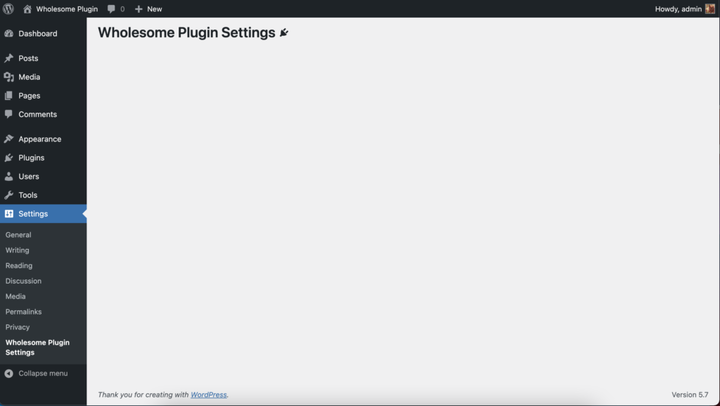 Renderowanie komponentów na ekranie ustawień
Dodaj pola ustawień
Pamiętasz dodatkowe kroki opisane w przewodniku „Korzystanie z opcji przechowywania danych”? Cóż, zamierzamy wkleić je dosłownie do tego komponentu, więc powinieneś otrzymać kod, który wygląda trochę tak:
import './admin.scss';

import api from '@wordpress/api';

import {
    Button,
    Icon,
    Panel,
    PanelBody,
    PanelRow,
    Placeholder,
    SelectControl,
    Spinner,
    TextControl,
    ToggleControl,
} from '@wordpress/components';

import {
    Fragment,
    render,
    Component,
} from '@wordpress/element';

import { __ } from '@wordpress/i18n';

class App extends Component {
    constructor() {
        super( ...arguments );

        this.state = {
            exampleSelect: '',
            exampleText: '',
            exampleText2: '',
            exampleText3: '',
            exampleToggle: false,
            isAPILoaded: false,
        };
    }

    componentDidMount() {

        api.loadPromise.then(() => {
            this.settings = new api.models.Settings();

            const { isAPILoaded } = this.state;

            if (isAPILoaded === false) {
                this.settings.fetch().then( (response) => {
                    this.setState( {
                        exampleSelect: response[ 'wholesomecode_wholesome_plugin_example_select' ],
                        exampleText: response[ 'wholesomecode_wholesome_plugin_example_text' ],
                        exampleText2: response[ 'wholesomecode_wholesome_plugin_example_text_2' ],
                        exampleText3: response[ 'wholesomecode_wholesome_plugin_example_text_3' ],
                        exampleToggle: Boolean( response[ 'wholesomecode_wholesome_plugin_example_toggle' ] ),
                        isAPILoaded: true,
                    } );
                } );
            }
        } );
    }

    render() {
        const {
            exampleSelect,
            exampleText,
            exampleText2,
            exampleText3,
            exampleToggle,
            isAPILoaded,
        } = this.state;

        if (! isAPILoaded) {
            return (<Placeholder>
                    <Spinner />
                </Placeholder>
            );
        }

        return (<Fragment>
                <div className="wholesome-plugin__header">
                    <div className="wholesome-plugin__container">
                        <div className="wholesome-plugin__title">
                            <h1>{ __( 'Wholesome Plugin Settings', 'wholesome-plugin') } <Icon icon="admin-plugins" /></h1>
                        </div>
                    </div>
                </div>

                <div className="wholesome-plugin__main">
                    <Panel>
                        <PanelBody
                            title={ __( 'Panel Body One', 'wholesome-plugin') }
                            icon="admin-plugins"
                        >
                            <SelectControl
                                help={ __( 'An example dropdown field.', 'wholesome-plugin') }
                                label={ __( 'Example Select', 'wholesome-plugin') }
                                onChange={ (exampleSelect) => this.setState( { exampleSelect }) }
                                options={ [
                                    {
                                        label: __( 'Please Select...', 'wholesome-plugin' ),
                                        value: '',
                                    },
                                    {
                                        label: __( 'Option 1', 'wholesome-plugin' ),
                                        value: 'option-1',
                                    },
                                    {
                                        label: __( 'Option 2', 'wholesome-plugin' ),
                                        value: 'option-2',
                                    },
                                ] }
                                value={ exampleSelect }
                            />
                        </PanelBody>
                        <PanelBody
                            title={ __( 'Panel Body Two', 'wholesome-plugin') }
                            icon="admin-plugins"
                        >
                            <TextControl
                                help={ __( 'This is an example text field.', 'wholesome-plugin') }
                                label={ __( 'Example Text', 'wholesome-plugin') }
                                onChange={ (exampleText) => this.setState( { exampleText }) }
                                value={ exampleText }
                            />

                        </PanelBody>
                        <PanelBody
                            title={ __( 'Panel Body Three', 'wholesome-plugin') }
                            icon="admin-plugins"
                        >
                            <PanelRow>
                                <TextControl
                                    help={ __( 'Use PanelRow to place controls inline.', 'wholesome-plugin') }
                                    label={ __( 'Example Text 2', 'wholesome-plugin') }
                                    onChange={ (exampleText2) => this.setState( { exampleText2 }) }
                                    value={ exampleText2 }
                                />
                                <TextControl
                                    help={ __( 'This control is inline.', 'wholesome-plugin') }
                                    label={ __( 'Example Text 3', 'wholesome-plugin') }
                                    onChange={ (exampleText3) => this.setState( { exampleText3 }) }
                                    value={ exampleText3 }
                                />
                            </PanelRow>
                        </PanelBody>
                        <PanelBody
                            title={ __( 'Panel Body Four', 'wholesome-plugin') }
                            icon="admin-plugins"
                        >
                            <ToggleControl
                                checked={ exampleToggle }
                                help={ __( 'An example toggle.', 'wholesome-plugin') }
                                label={ __( 'Example Toggle', 'wholesome-plugin') }
                                onChange={ (exampleToggle) => this.setState( { exampleToggle }) }
                            />
                        </PanelBody>
                        <Button
                            isPrimary
                            isLarge
                            onClick={ () => {}}
                        >
                            { __( 'Save', 'wholesome-plugin') }
                        </Button>
                    </Panel>
                </div>
            </Fragment>) }
}

document.addEventListener( 'DOMContentLoaded', () => {
    const htmlOutput = document.getElementById( 'wholesome-plugin-settings' );

    if (htmlOutput) {
        render(
            <App />,
            htmlOutput
        );
    }
});
Oprócz usunięcia kodu subscribe, componentDidMountktórego wcześniej używaliśmy do zapisywania w tym przewodniku, i dodania przycisku, kod jest w zasadzie kopiuj i wklej.
Wszystko w porządku, nasza strona ustawień powinna teraz wyglądać trochę tak:
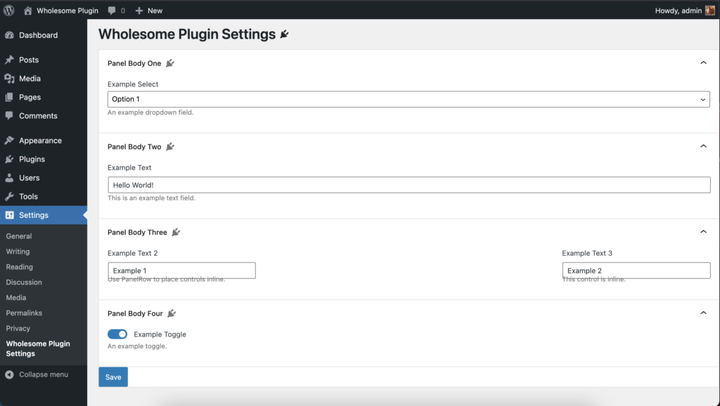 Renderowanie pól ustawień
Nie martw się, posprzątamy style w sekcji 4 tego przewodnika.
Obsługuj Zapisz
W onClickmodule obsługi <button>komponentu dodaj następujący kod:
<Button
  isPrimary
  isLarge
  onClick={ () => {
    const {
      exampleSelect,
      exampleText,
      exampleText2,
      exampleText3,
      exampleToggle,
    } = this.state;

    const settings = new api.models.Settings( {
      [ 'wholesomecode_wholesome_plugin_example_select' ]: exampleSelect,
      [ 'wholesomecode_wholesome_plugin_example_text' ]: exampleText,
      [ 'wholesomecode_wholesome_plugin_example_text_2' ]: exampleText2,
      [ 'wholesomecode_wholesome_plugin_example_text_3' ]: exampleText3,
      [ 'wholesomecode_wholesome_plugin_example_toggle' ]: exampleToggle? 'true': '',
    } );
    settings.save();
  }}
  >
  { __( 'Save', 'wholesome-plugin') }
</Button>
Spowoduje to zapisanie naszych opcji i ustawień po kliknięciu przycisku. Jednak nic nie wskazuje na to, że opcje zostały domyślnie zapisane.
Utwórz powiadomienie
Aby przekazać naszemu użytkownikowi informację, że opcje i ustawienia zostały zapisane, zaimplementujmy powiadomienie „snackbar”. Jest to to samo powiadomienie, które jest używane na głównym ekranie edytora postów, którego używa edytor bloków, gdy post został zapisany.
Aby to dodać, musimy przenieść podstawowy komponent Gutenberga do naszej kompilacji, ponieważ lista powiadomień nie jest dostępna przy użyciu zwykłych instrukcji importu.
Do pliku będziemy musieli dodać następujący kod:
import { SnackbarList } from '@wordpress/components';

import {
    dispatch,
    useDispatch,
    useSelect,
} from '@wordpress/data';

import { store as noticesStore } from '@wordpress/notices';

const Notices = () => {
    const notices = useSelect( (select) =>
            select( noticesStore) .getNotices()
                .filter( (notice) => notice.type === 'snackbar' ),
        []
    );
    const { removeNotice } = useDispatch( noticesStore );
    return (<SnackbarList
            className="edit-site-notices"
            notices={ notices }
            onRemove={ removeNotice }
        />
    );
};
Następnie w głównym renderowaniu <App>komponentu dodaj przed zamknięciem </Fragment>:
<div className="wholesome-plugin__notices">
  <Notices/>
</div>
Na koniec dodaj następujące elementy do onClickobsługi przycisku:
dispatch('core/notices').createNotice(
  'success',
  __( 'Settings Saved', 'wholesome-plugin' ),
  {
    type: 'snackbar',
    isDismissible: true,
  }
);
Spowoduje to utworzenie małego wyskakującego okienka „snackbar” za każdym razem, gdy ustawienia zostaną zapisane.
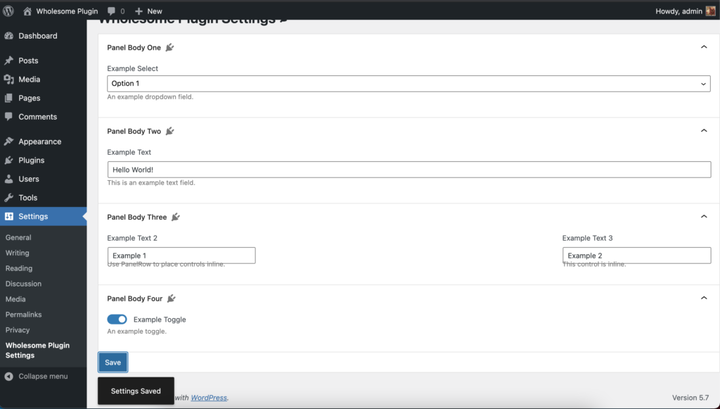 Powiadomienie paska przekąsek w akcji
Wiem, wiem, wciąż musimy naprawić te style.
Pełny /src/admin.jsplik
Dla odniesienia tutaj jest pełny /src/admin.jskod pliku:
import './admin.scss';

import api from '@wordpress/api';

import {
    Button,
    Icon,
    Panel,
    PanelBody,
    PanelRow,
    Placeholder,
    SelectControl,
    SnackbarList,
    Spinner,
    TextControl,
    ToggleControl,
} from '@wordpress/components';

import {
    dispatch,
    useDispatch,
    useSelect,
} from '@wordpress/data';

import {
    Fragment,
    render,
    Component,
} from '@wordpress/element';

import { __ } from '@wordpress/i18n';

import { store as noticesStore } from '@wordpress/notices';

const Notices = () => {
    const notices = useSelect( (select) =>
            select( noticesStore) .getNotices()
                .filter( (notice) => notice.type === 'snackbar' ),
        []
    );
    const { removeNotice } = useDispatch( noticesStore );
    return (<SnackbarList
            className="edit-site-notices"
            notices={ notices }
            onRemove={ removeNotice }
        />
    );
};

class App extends Component {
    constructor() {
        super( ...arguments );

        this.state = {
            exampleSelect: '',
            exampleText: '',
            exampleText2: '',
            exampleText3: '',
            exampleToggle: false,
            isAPILoaded: false,
        };
    }

    componentDidMount() {

        api.loadPromise.then( () => {
            this.settings = new api.models.Settings();

            const { isAPILoaded } = this.state;

            if (isAPILoaded === false) {
                this.settings.fetch().then( (response) => {
                    this.setState( {
                        exampleSelect: response[ 'wholesomecode_wholesome_plugin_example_select' ],
                        exampleText: response[ 'wholesomecode_wholesome_plugin_example_text' ],
                        exampleText2: response[ 'wholesomecode_wholesome_plugin_example_text_2' ],
                        exampleText3: response[ 'wholesomecode_wholesome_plugin_example_text_3' ],
                        exampleToggle: Boolean( response[ 'wholesomecode_wholesome_plugin_example_toggle' ] ),
                        isAPILoaded: true,
                    } );
                } );
            }
        } );
    }

    render() {
        const {
            exampleSelect,
            exampleText,
            exampleText2,
            exampleText3,
            exampleToggle,
            isAPILoaded,
        } = this.state;

        if (! isAPILoaded) {
            return (<Placeholder>
                    <Spinner />
                </Placeholder>
            );
        }

        return (<Fragment>
                <div className="wholesome-plugin__header">
                    <div className="wholesome-plugin__container">
                        <div className="wholesome-plugin__title">
                            <h1>{ __( 'Wholesome Plugin Settings', 'wholesome-plugin') } <Icon icon="admin-plugins" /></h1>
                        </div>
                    </div>
                </div>

                <div className="wholesome-plugin__main">
                    <Panel>
                        <PanelBody
                            title={ __( 'Panel Body One', 'wholesome-plugin') }
                            icon="admin-plugins"
                        >
                            <SelectControl
                                help={ __( 'An example dropdown field.', 'wholesome-plugin') }
                                label={ __( 'Example Select', 'wholesome-plugin') }
                                onChange={ (exampleSelect) => this.setState( { exampleSelect }) }
                                options={ [
                                    {
                                        label: __( 'Please Select...', 'wholesome-plugin' ),
                                        value: '',
                                    },
                                    {
                                        label: __( 'Option 1', 'wholesome-plugin' ),
                                        value: 'option-1',
                                    },
                                    {
                                        label: __( 'Option 2', 'wholesome-plugin' ),
                                        value: 'option-2',
                                    },
                                ] }
                                value={ exampleSelect }
                            />
                        </PanelBody>
                        <PanelBody
                            title={ __( 'Panel Body Two', 'wholesome-plugin') }
                            icon="admin-plugins"
                        >
                            <TextControl
                                help={ __( 'This is an example text field.', 'wholesome-plugin') }
                                label={ __( 'Example Text', 'wholesome-plugin') }
                                onChange={ (exampleText) => this.setState( { exampleText }) }
                                value={ exampleText }
                            />

                        </PanelBody>
                        <PanelBody
                            title={ __( 'Panel Body Three', 'wholesome-plugin') }
                            icon="admin-plugins"
                        >
                            <PanelRow>
                                <TextControl
                                    help={ __( 'Use PanelRow to place controls inline.', 'wholesome-plugin') }
                                    label={ __( 'Example Text 2', 'wholesome-plugin') }
                                    onChange={ (exampleText2) => this.setState( { exampleText2 }) }
                                    value={ exampleText2 }
                                />
                                <TextControl
                                    help={ __( 'This control is inline.', 'wholesome-plugin') }
                                    label={ __( 'Example Text 3', 'wholesome-plugin') }
                                    onChange={ (exampleText3) => this.setState( { exampleText3 }) }
                                    value={ exampleText3 }
                                />
                            </PanelRow>
                        </PanelBody>
                        <PanelBody
                            title={ __( 'Panel Body Four', 'wholesome-plugin') }
                            icon="admin-plugins"
                        >
                            <ToggleControl
                                checked={ exampleToggle }
                                help={ __( 'An example toggle.', 'wholesome-plugin') }
                                label={ __( 'Example Toggle', 'wholesome-plugin') }
                                onChange={ (exampleToggle) => this.setState( { exampleToggle }) }
                            />
                        </PanelBody>
                        <Button
                            isPrimary
                            isLarge
                            onClick={ () => {
                                const {
                                    exampleSelect,
                                    exampleText,
                                    exampleText2,
                                    exampleText3,
                                    exampleToggle,
                                } = this.state;

                                const settings = new api.models.Settings( {
                                    [ 'wholesomecode_wholesome_plugin_example_select' ]: exampleSelect,
                                    [ 'wholesomecode_wholesome_plugin_example_text' ]: exampleText,
                                    [ 'wholesomecode_wholesome_plugin_example_text_2' ]: exampleText2,
                                    [ 'wholesomecode_wholesome_plugin_example_text_3' ]: exampleText3,
                                    [ 'wholesomecode_wholesome_plugin_example_toggle' ]: exampleToggle? 'true': '',
                                } );
                                settings.save();

                                dispatch('core/notices').createNotice(
                                    'success',
                                    __( 'Settings Saved', 'wholesome-plugin' ),
                                    {
                                        type: 'snackbar',
                                        isDismissible: true,
                                    }
                                );
                            }}
                        >
                            { __( 'Save', 'wholesome-plugin') }
                        </Button>
                    </Panel>
                </div>

                <div className="wholesome-plugin__notices">
                    <Notices/>
                </div>

            </Fragment>) }
}

document.addEventListener( 'DOMContentLoaded', () => {
    const htmlOutput = document.getElementById( 'wholesome-plugin-settings' );

    if (htmlOutput) {
        render(
            <App />,
            htmlOutput
        );
    }
});
Dodaj SCSS
Czas naprawić te style. Po prostu dodaj następujące elementy do /src/admin.scsspliku (który byś utworzył w przewodniku Dodaj punkty wejścia do przewodnika tworzenia skryptu blokowego) .
#wholesome-plugin-settings {

    .components-placeholder {
        background: #f1f1f1;
    }

    .wholesome-plugin__header {
        background-color: #ffffff;
        box-shadow: 0 1px 0 rgba(213, 213, 213, .5), 0 1px 2px #eeeeee;
        margin-left: -2em;
        padding: 20px 10px;

        .wholesome-plugin__container {
            margin: 0 auto;
            max-width: 750px;

            .wholesome-plugin__title {
                align-items: center;
                display: flex;
                justify-content: center;

                .dashicon {
                    color: #757575;
                }
            }
        }
    }

    .wholesome-plugin__main {
        margin-left: auto;
        margin-right: auto;
        max-width: 750px;

        .components-panel {
            background: none;
            border: none;
        }

        .components-panel__body {
            background: #ffffff;
            border: 1px solid #e2e4e7;
            margin: 1rem 0;
        }
    }

    .components-base-control__help {
        margin-top: .5rem;
    }

    .components-panel__row {
        > div {
            flex-grow: 1;
            margin-right: 1rem;

            &:last-of-type {
                margin-right: 0;
            }
        }
    }

    .wholesome-plugin__notices {
        .components-snackbar {
            bottom: .5rem;
            position: fixed;
        }
    }
}
Przeglądanie strony ustawień
Oto wynik końcowy:
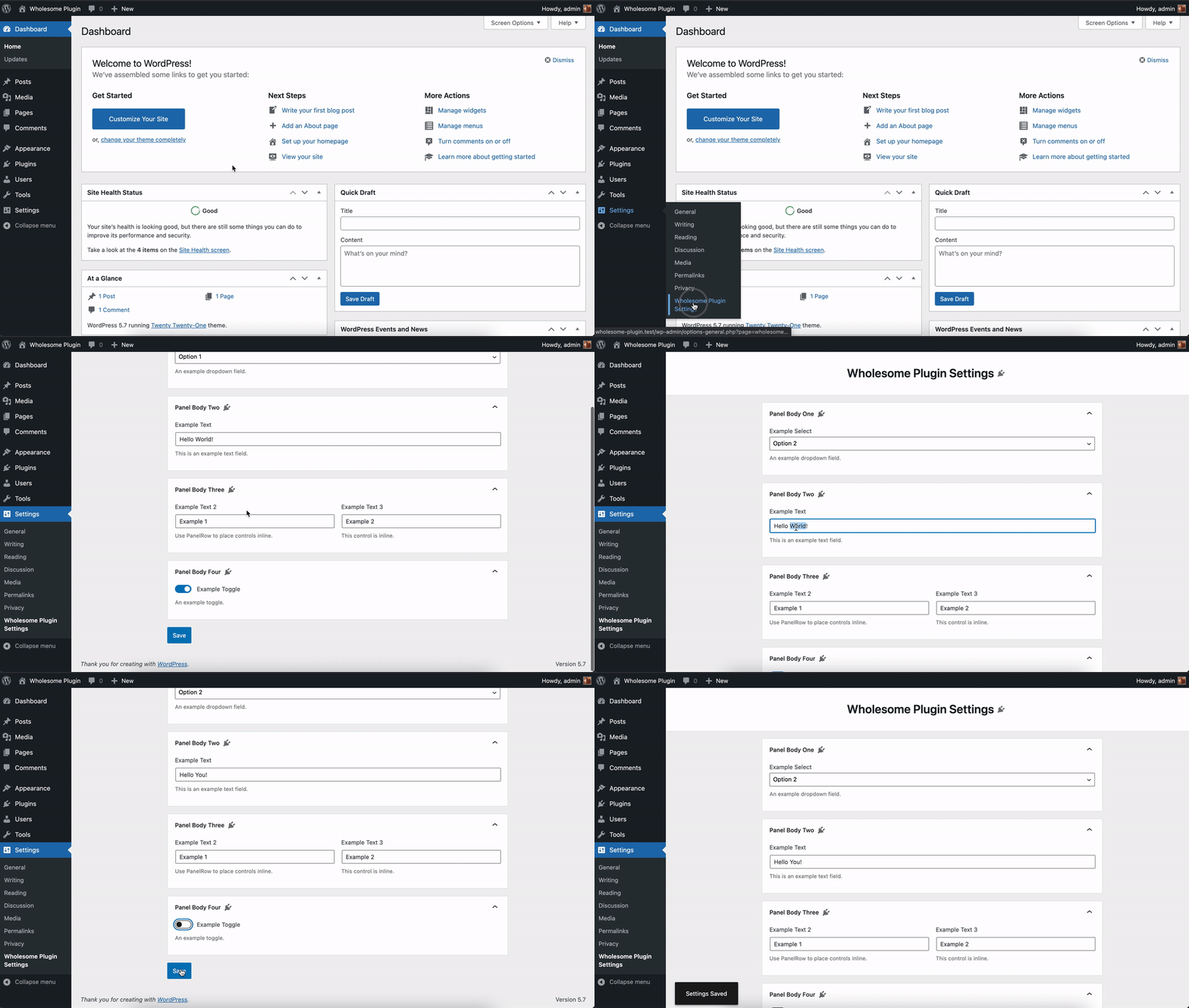 Strona ustawień
Niektóre wtyczki mają link „ustawienia” na stronie wtyczek, jak na przykład:
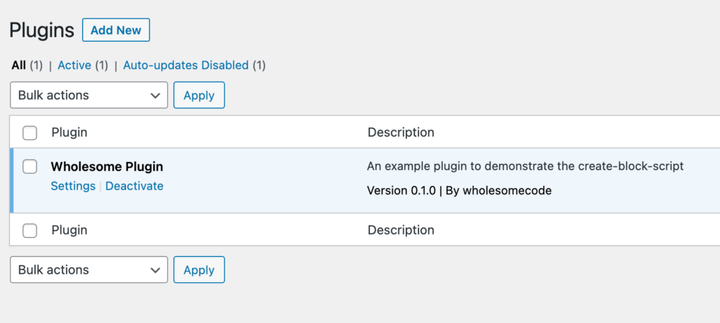 Link do ustawień w panelu strony ustawień wtyczek
Aby to osiągnąć, dodaj następujący blok kodu do katalogu głównego pliku wtyczki (w tym przypadku wholesome-plugin.php):
function wholesomecode_wholesome_plugin_settings_link( $links ): array {
    $label = esc_html__( 'Settings', 'wholesome-plugin' );
    $slug  = 'wholesome_plugin_settings';

    array_unshift( $links, "<a href='options-general.php?page=$slug'>$label</a>" );

    return $links;
}
add_action( 'plugin_action_links_'. plugin_basename( __FILE__ ), 'wholesomecode_wholesome_plugin_settings_link', 10 );
- Spójrz na tworzenie zagnieżdżonych bloków podrzędnych za pomocą
InnerBlockskomponentu - Zobacz, jak używać meta pól postu w blokach Gutenberga
- Spójrz na tworzenie panelu dostosowania z komponentami Gutenberg